


Elevate Your Self-Hosted Applications: A Guide to Modern Debian Java Installation
Are you running critical self-hosted services like Minecraft servers, UniFi Network Controller, or other Java-dependent applications on your Debian system? Frustrated by outdated Java versions in the default repositories? This guide is for you. We’ll show you how to effortlessly install the latest and even specific older versions of OpenJDK on Debian using Adoptium Temurin, ensuring your self-hosted applications run smoothly and securely. Get ready to unlock the full potential of your server by gaining precise control over your Java environment.
FAQ
- Question 1: Why use Adoptium Temurin instead of Debian’s default OpenJDK?
Answer 1: While Debian’s default repositories offer OpenJDK, they often lag behind the latest stable or LTS releases. Adoptium Temurin provides more recent versions (e.g., Java 17, 21, 25) with faster updates and a focus on long-term support (LTS) builds, which are crucial for modern applications and ensuring your self-hosted services remain compatible and secure. - Question 2: How do I switch between different Java versions after installing multiple on Debian?
Answer 2: Debian’supdate-alternativestool is your best friend for this. After installing multiple JDKs (e.g.,temurin-17-jdkandtemurin-21-jdk), you can configure the default Java runtime. For example, runsudo update-alternatives --config javaandsudo update-alternatives --config javacto interactively select your preferred version from the installed options. This is especially useful for managing dependencies for various self-hosted projects. - Question 3: My specific self-hosted application requires an older Java version not easily found. Can Temurin help?
Answer 3: Yes! Adoptium Temurin maintains LTS releases dating back to Java 8, making it an excellent choice for applications requiring specific older versions. Simply search forapt search temurinto see the available range. If an extremely niche or very old version (pre-Java 8) is needed, you might explore tools like SDKMAN! for local installation management, but for most common self-hosting needs, Temurin covers a wide and practical spectrum.
Why Specific Java Versions Matter for Your Self-Hosted Environment
Java is the backbone for countless powerful applications, forming the foundation for popular self-hosted services like the UniFi Network Controller, Minecraft game servers, and even newer platforms like Hytale. These services rely heavily on a specific Java Runtime Environment (JRE) to translate their code into commands your Debian server can execute.
However, the world of Java is constantly evolving, with new versions introducing performance enhancements, security fixes, and new features. Many self-hosted applications demand a particular Java version to function optimally, or even to run at all. Relying solely on your Debian system’s default repositories can often leave you stuck with outdated releases or without the exact version your software requires. This is where third-party repositories become invaluable.
Enter Adoptium Temurin (formerly AdoptOpenJDK), a leading provider of high-quality, open-source OpenJDK builds. By integrating their repository into your Debian system, you gain access to a wide array of LTS (Long-Term Support) releases, from Java 8 all the way up to the latest experimental versions like Java 25. The best part? Once configured, you’ll receive continuous updates, ensuring your Debian Java installation remains secure and current.
Streamlining OpenJDK Installation on Debian with Adoptium Temurin
The Adoptium Temurin project simplifies the process of getting the right OpenJDK on Debian. Their builds are available for both AMD64 and ARM64 (AARCH64) architectures, covering most modern self-hosting hardware. These steps are designed for Debian-based systems, including popular derivatives like Ubuntu, making it a versatile solution for many server administrators.
Step-by-Step: Installing Adoptium Temurin OpenJDK on Debian
Follow these instructions carefully to integrate the Adoptium Temurin repository and install your desired Java version.
Preparing Your Debian System
Before embarking on any major software installation, it’s crucial to ensure your Debian system is fully up to date. This prevents potential package conflicts and ensures a smooth process.
You can update and upgrade all existing packages using the following commands:
sudo apt update && sudo apt upgrade -yNext, we need to ensure the
wgetpackage is installed. This utility will be used to securely retrieve the GPG key for the Adoptium Temurin repository.Install
wgetby running:sudo apt install wget -y
Adding the Adoptium Temurin Repository
With
wgetinstalled, the next critical step is to securely add the GPG key for the Adoptium Temurin repository. This GPG key allows your system’s package manager to verify the authenticity and integrity of the Java packages provided by Adoptium, preventing malicious tampering.Add the GPG key to your system’s keyring:
sudo wget -O /usr/share/keyrings/adoptium.gpg https://packages.adoptium.net/artifactory/api/apt/keyNow that the GPG key is in place, we can add the Adoptium Temurin repository to your Debian system’s sources. This command creates a new file,
adoptium.list, which tells your package manager where to find the Java builds, referencing the secure GPG key we just added.Add the repository source:
echo "deb [signed-by=/usr/share/keyrings/adoptium.gpg] https://packages.adoptium.net/artifactory/deb $(lsb_release -cs) main" | sudo tee /etc/apt/sources.list.d/adoptium.listFor your Debian system to recognize the newly added Java packages, you need to refresh your package list cache. This step tells the APT package manager to read the new
adoptium.listfile and fetch the list of available Temurin Java builds.Update your package list:
sudo apt update
Discovering Available Java Versions
With the Adoptium Temurin repository successfully set up, you’ll want to explore which Java versions are now available for installation. The easiest way to get a comprehensive list is to search for packages starting with "temurin".
Find available versions:
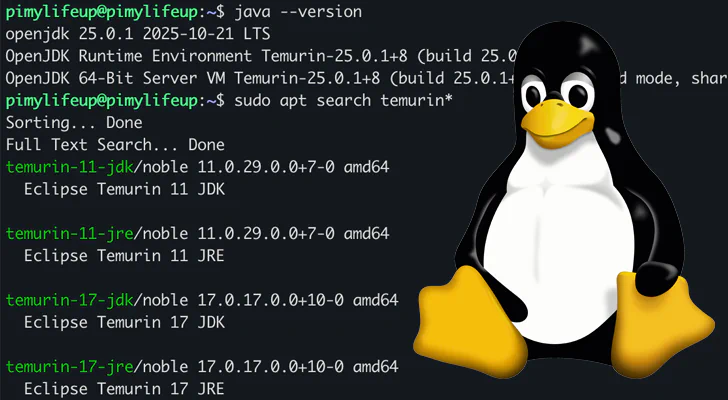
apt search temurinAfter running this command, you’ll see a detailed list of various
temurin-XX-jdk(Java Development Kit) andtemurin-XX-jre(Java Runtime Environment) packages. For instance, on a modern Debian system, you might see something like:temurin-11-jdk/stable 11.0.21+9-1 amd64
temurin-17-jdk/stable 17.0.9+9-1 amd64
temurin-21-jdk/stable 21.0.1+12-1 amd64
temurin-25-jdk/stable 25.0.0+3-1 amd64
…and many more.
Installing Your Chosen Java Development Kit (JDK)
Finally, you’re ready to install the specific Java Development Kit (JDK) your self-hosted application requires. For this example, we’ll install Java 25. Replace
temurin-25-jdkwith your desired version (e.g.,temurin-17-jdkfor Java 17 LTS).Install your chosen Java version:
sudo apt install temurin-25-jdk -yThis process should complete fairly quickly, and your Debian system will now have the specified Java version ready for use.
Unique Tip for Self-Hosters: If you’re managing multiple self-hosted applications that require different Java versions (e.g., one needing Java 11, another Java 17), you can install all of them. Then, use the
sudo update-alternatives --config javacommand to easily switch the system-wide default Java version. This offers incredible flexibility without manually managing environment variables for each service.
Conclusion: Empowering Your Self-Hosted Applications
By following this guide, you’ve successfully learned how to install and manage newer or older versions of Java on your Debian-based Linux system. The inability to access the precise Java version required for your self-hosted services is a common hurdle, but as you’ve seen, the Adoptium Temurin repository provides a robust and straightforward workaround.
This method not only grants you access to virtually any Java version you might need for your projects on Debian but also simplifies long-term maintenance by providing continuous updates directly through your package manager. This saves you from the complexities of manual installations or relying on potentially outdated system defaults.
Should you encounter any issues with this Debian Java installation method, please don’t hesitate to leave a comment below. If you found this Linux guide valuable, we encourage you to explore our other tutorials to further enhance your self-hosting expertise!