


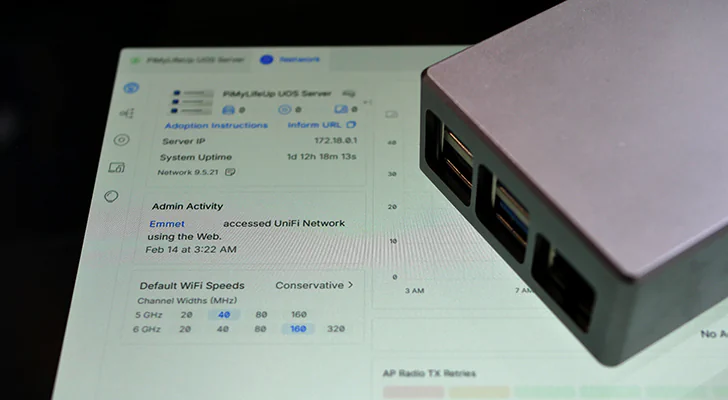
Unlock the power of robust network management by transforming your Raspberry Pi into a dedicated UniFi OS Server! This comprehensive guide walks tech-savvy readers through installing the modern UniFi OS Server, the new standard for self-hosting your UniFi network controller. Discover how to leverage your efficient Raspberry Pi to gain advanced features typically reserved for official UniFi consoles, enjoying seamless updates and enhanced control over your home network infrastructure. Dive in to build a powerful, low-cost solution for your networking needs.
Why Choose UniFi OS Server for Your Raspberry Pi?
The UniFi OS Server stands out as a premier solution for anyone keen on self-hosting their UniFi network controller. It’s engineered from the ground up to deliver a rich suite of features found in official UniFi consoles, all without the necessity of owning one. This revolutionary foundation not only provides all the UniFi Network Controller functionalities but also eliminates the complexities associated with older solutions.
The Modern Standard for Network Control
Designed for future expansion, UniFi OS Server promises to introduce new features and support for other UniFi applications over time. It drastically simplifies the installation and self-hosting process for your UniFi stack on a Raspberry Pi. Everything you need is configured for you, eliminating the need to manually tweak your operating system to get various components operational.
Unlocking Advanced Features and Unified Updates
A significant advantage of deploying UniFi OS Server on your Raspberry Pi is its unified update mechanism. This means you’ll receive improvements and new features directly through the software itself, ensuring your system remains current and secure. Furthermore, the older method of setting up the UniFi network controller is now considered legacy, with most users encouraged to migrate to the new UniFi OS Server for superior performance and features.
The Perfect Pairing: Raspberry Pi and ARM64 Support
Given that UniFi OS Server supports ARM64 devices, the Raspberry Pi is an ideal candidate. These devices are incredibly energy-efficient, making them perfect for a 24/7 DIY server or home lab setup that won’t significantly impact your electricity bill.
Unique Tip: UniFi OS Server leverages modern containerization technologies (like Podman, as mentioned in the installer’s output) to manage its components. This approach ensures greater stability, easier updates, and better resource isolation on your Raspberry Pi compared to traditional, monolithic installations. It’s a testament to its robust design for efficient network management.
Essential Requirements for Your UniFi OS Server
Hardware Specifications and Operating System
To successfully utilize the UniFi OS Server software, you must be using a Raspberry Pi 3 or newer. However, for the best possible experience, we strongly recommend using the latest Pi model with the highest memory capacity you can comfortably afford. More RAM is always beneficial, especially for server software managing complex network environments.
Crucially, you MUST be running a 64-bit operating system. UniFi OS Server will not install on 32-bit operating systems, which is why older Raspberry Pi models that are typically limited to 32-bit OS are not supported.
We last tested this tutorial on a Raspberry Pi 5 running Raspberry Pi OS Lite Trixie (64-bit edition).
Step-by-Step Installation Guide
In the following steps, we will walk you through installing and running the UniFi OS Server on your Raspberry Pi.
Before you proceed, it’s essential to perform a fresh operating system installation on your Pi. We highly recommend Raspberry Pi OS Lite, a slimmed-down OS that perfectly complements the Pi’s hardware for server tasks. Additionally, assigning a static IP address to your Raspberry Pi, preferably through DHCP reservation on your router, is advised for consistent network access.
Preparing Your Raspberry Pi for UniFi OS
1. The first step involves ensuring your Raspberry Pi’s operating system is fully updated. This is crucial for security and compatibility. Run the following commands in your terminal:
sudo apt update
sudo apt upgrade -y
The first command updates your system’s package list, while the second upgrades any outdated packages.
2. Next, install the two necessary software packages for setting up the UniFi OS Server:
sudo apt install -y curl podman
Downloading the UniFi OS Server Installer
3. With your Raspberry Pi prepared, download the UniFi OS Server installer. This intelligent installer manages all the reconfigurations of your current operating system and sets up the UniFi containers. Use wget to download the installer:
wget https://fw-download.unifi.ui.com/unifi-os-server/5.0.6/installer.sh -O unifi-os-server-installer.sh
This link downloads installer version 5.0.6. For newer versions, check the official Ubiquiti downloads page and look for the “Linux ARM64″ option.
4. After downloading, grant execute privileges to the installer script using the chmod command:
chmod +x unifi-os-server-installer.sh
This step enables you to run the installer.
Executing the Installation Script
5. You are now ready to launch the UniFi OS Server installer:
./unifi-os-server-installer.sh
6. The installer will present a confirmation message detailing the version to be installed. Type y and press ENTER to proceed. Be patient, as the installation process involves setting up the UniFi network controller using Podman and making other system changes, which can take some time depending on your internet speed.
7. Upon successful completion, the terminal will display a confirmation message with helpful tips for managing your UniFi OS Server. Most importantly, it will provide the URL to access the UniFi OS Server web interface, where you’ll finalize the setup.
Accessing and Configuring the UniFi OS Web Interface
8. Navigate to the URL provided by the installer in your web browser to access the UniFi OS web interface. You might encounter a browser warning about an insecure connection. This is normal, as the installer generates a self-signed certificate for HTTPS support, which isn’t verified by a public signing authority. Proceed past this warning.
9. The first setup step involves naming your new UniFi OS Server. Enter your desired name (1.) and click “Next” (2.).
10. Next, you’ll choose how to create a UI account. This account allows remote management of your network controller via the UniFi website.
- Log in to an existing UI account: Use this if you already have one.
- Create a new UI account: Enter your email, username, and password, then click the button to create.
- Use without a UI account: Choose this if you prefer not to use a Ubiquiti account, though you’ll miss out on remote management and other features.
11. After completing the account process, the UniFi OS Server will finish its installation and final setup on your Raspberry Pi. This usually takes just a few minutes.
12. Once the setup is complete, you will gain full access to the UniFi network controller through the web interface. You can now manage most of your network features directly from this interface.
Conclusion: Empower Your Network with Self-Hosting
By following this tutorial, you should now have successfully installed and configured the UniFi OS Server on your Raspberry Pi. This modern solution is designed to replace older self-hosting methods for the network controller, offering significantly easier deployment and introducing many features previously exclusive to official UniFi devices like the Dream Machine.
The continued support for ARM64 devices such as the Raspberry Pi makes UniFi OS Server an excellent choice for a powerful, efficient, and cost-effective home network management solution. Should you encounter any issues, feel free to post a comment below.
If you found this tutorial helpful, explore our many other Raspberry Pi projects to further expand your self-hosting capabilities!
FAQ
Question 1: Why should I choose UniFi OS Server over the older UniFi Network Controller software?
Answer 1: UniFi OS Server is the new standard, built from the ground up to provide a more robust and feature-rich experience. It includes functionalities previously exclusive to official UniFi consoles, offers easier installation, unified updates for all components, and is designed for future expansion with support for additional UniFi applications. The older method is now considered legacy, making UniFi OS Server the recommended choice for modern network management.
Question 2: What are the minimum requirements for running UniFi OS Server on a Raspberry Pi?
Answer 2: You need a Raspberry Pi 3 or newer. For the best performance, a Raspberry Pi 4 or 5 with higher RAM capacity is recommended. Crucially, the operating system must be 64-bit; UniFi OS Server will not install on 32-bit systems.
Question 3: Can I manage my UniFi OS Server remotely, even when I’m away from my home network?
Answer 3: Yes, absolutely! By linking your UniFi OS Server to an existing or new UI (Ubiquiti) account during the setup process, you enable remote management. This allows you to securely access and control your network controller from anywhere via the official UniFi website or mobile app, providing convenient network management even when you’re on the go.